Keypads & Quick keys
Keypads
Using the "keypads" option you can change the order of the keypad buttons in the POS terminal.
To access this facility select the "keypads" menu item from the POS terminal sub-menu (Main Menu -> Properties -> POS Terminal -> Keypads):
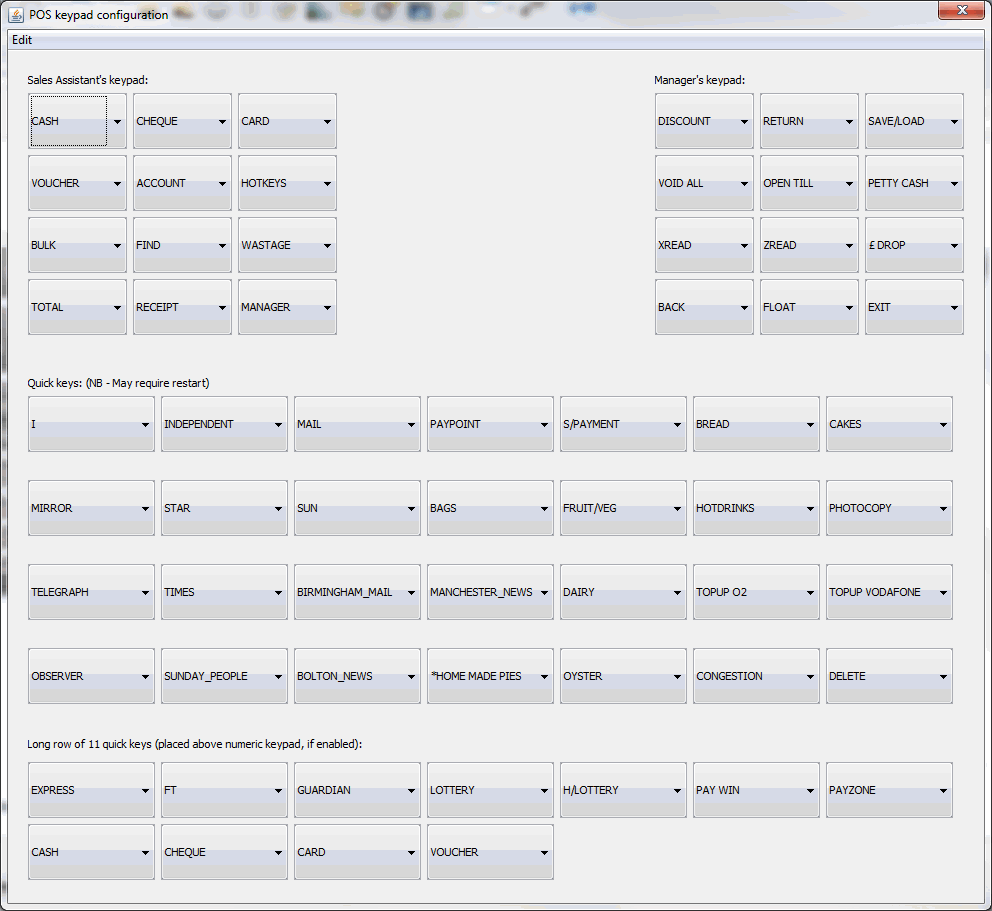
From here simply select one of the options from the dropdown list for each button. When you have finished modifying the keypad you will be asked if you want to save changes on closing the window.
Keypad Button Options
| Button# | Button Name | Description |
|---|---|---|
| 1 | ACCOUNT | Customer account |
| 2 | B PRICE | |
| 3 | BACK | Previous keypad |
| 4 | BACS | BACS payment type |
| 5 | BULK | Bulk purchase, e.g. 4 x |
| 6 | CARD | Card payment type |
| 7 | CASH | Cash payment type |
| 8 | CHEQUE | Cheque payment type |
| 9 | CLOCK IN/OUT | Timeclock clock in/ out |
| 10 | CNP | CNP card payment type |
| 11 | COMMENT | Add a comment in the sale |
| 12 | CREDIT | Credit note creation |
| 13 | DINING | Display dining room table layout |
| 14 | DISCOUNT | Apply a visit level discount |
| 15 | DOWNLOAD | |
| 16 | EXIT | Exit the POS terminal |
| 17 | FIND | Product search |
| 18 | FLOAT | Float adjustment |
| 19 | FRESH | Now defunct Fresh promotions |
| 20 | FUEL | |
| 21 | GIFT BAL | Gift card balance |
| 22 | GIFT VOUCHER | Create a gift voucher for use in the store |
| 23 | HOTKEYS | Open the hotkeys window |
| 24 | HTA BAL | Query the balance on an HTA gift card |
| 25 | LABELS | Print labels |
| 26 | LAST CUST | |
| 27 | LOTTERY | Enter the sale of lottery tickets manually |
| 28 | MANAGER | Load the manager keypad |
| 29 | MORE | Load the more keypad |
| 30 | MORE (2) | Load the more (2) keypad |
| 31 | OPEN TILL | Open the cash drawer manually without a sale |
| 32 | PAPERS | |
| 33 | PAY WIN | Payout a lottery win |
| 34 | PAYPAL | Paypal payment type |
| 35 | PAYPOINT | Enter a manual Paypoint sale |
| 36 | PED ADMIN | PED admin tools required by some gateway providers |
| 37 | PETTY CASH | Payout cash for a petty cash transaction |
| 38 | POINTS | Points payment type when using a loyalty scheme |
| 39 | PRICE CHANGE | |
| 40 | PROD FILE | |
| 41 | PROMO VOUCHER | |
| 42 | QUOTE | |
| 43 | RECEIPT | Print receipts |
| 44 | REFUSAL | Manual entry for a refusal of sales |
| 45 | RESTOCK | Print a restocking receipt from the last time the process has been run |
| 45 | RETURN | Process a return for a product manually |
| 46 | REVERSAL | |
| 47 | RUN | |
| 48 | S/PAYMENT | Simple Payments payout |
| 49 | SAVE/LOAD | Save or load a visit if a customer sale needs to be put aside |
| 50 | SCAN N SHOP | |
| 51 | SCRATCHCARDS | Enter details about the scratchcards for tracking of card number |
| 52 | SELF SERVICE | |
| 53 | STATS | |
| 54 | TOTAL | Total the visit |
| 55 | VOID ALL | Void all products in the visit |
| 56 | VOUCHER | Voucher payment type |
| 57 | W/UNION | Western Union transaction |
| 58 | WASTAGE | Process a wastage transaction |
| 59 | WEB | Web payment type |
| 60 | XREAD | Run an XREAD |
| 61 | ZAPPER | |
| 62 | ZREAD | Run a ZREAD |
| 63 | £ DROP | Process a cash drop |
Quick Keys
Beneath the Sales Assistant, Manager, More & More (2) keypads are 5 rows of "Quick Keys". New builds after the release of build 166 will include all the products necessary for these to function and will have by default the Lottery and Paypoint buttons enabled. Buttons can be enabled, disabled and reorganised as required.
The Quick Keys, which appear below the Scan entry line in the POS terminal window, allow you to set up to 39 buttons for quick access to products or Hotkey panels. All of the buttons have a simple graphic identifying what each button relates to.
To link a product to a button, it must have the barcode set exactly to the name of the button (with the exception of the Lottery and Paypoint "products" which have their barcodes set in the configuration). To link a Hotkey panel to a button, it must have the same name as the button.
Quick Key Button Options
At the time of writing, there are 90+ possible values for each button:
| Button# | Button Name | Description |
|---|---|---|
| 1 | BACS | BACS payment type |
| 2 | BAGS | |
| 3 | BEER | |
| 4 | BIRMINGHAM_MAIL | Birmingham Mail newspaper |
| 5 | BISCUITS | |
| 6 | BOLTON_NEWS | Bolton News newspaper |
| 7 | BREAD | |
| 8 | BURY_TIMES | Bury Times newspaper |
| 9 | BUSPASS | |
| 10 | CAKES | |
| 11 | CARD | Card payment type |
| 12 | CASH | Cash payment type |
| 13 | CHEQUE | Cheque payment type |
| 14 | CONGESTION | |
| 15 | DAIRY | |
| 16 | DINING | |
| 17 | DRY_CLEANING | |
| 18 | EPAY | |
| 19 | EXPRESS | Express newspaper |
| 20 | FLOWERS | |
| 21 | FRESH | now defunct fresh promotion scheme |
| 22 | FRUIT/VEG | |
| 23 | FT | Financial Times newspaper |
| 24 | GIFTS | |
| 25 | GREETINGCARD | |
| 26 | GROCERY | |
| 27 | GUARDIAN | Guardian newspaper |
| 28 | H/LOTTERY | Health Lottery |
| 29 | HONEY | |
| 30 | HOTDRINKS | |
| 31 | HOUSEHOLD | |
| 32 | I | I newspaper |
| 33 | ICECREAM | |
| 34 | INDEPENDENT | Independent newspaper |
| 35 | LOTTERY | Uses the Lottery barcode option in the configuration options |
| 36 | MAGAZINES | |
| 37 | Mail newspaper | |
| 38 | MANCHESTER_NEWS | Manchester Evening News newspaper |
| 39 | MEAT | |
| 40 | MIRROR | Mirror newspaper |
| 41 | NEARCOLLECT | |
| 42 | NEWS | |
| 43-60 | NUMERIC KEYPAD | 17 buttons in total 7 8 9 £20 4 5 6 £10 1 2 3 £5 00 0 ENTER EXACT DELETE |
| 61 | OBSERVER | Observer newspaper |
| 62 | OYSTER | |
| 63 | PAY WIN | Pay out Lottery win |
| 64 | PAYPAL | PAYPAL payment method |
| 65 | PAYPOINT | Uses the Paypoint barcode in the configuration options |
| 66 | PAYZONE | |
| 67 | PHOTOCOPY | |
| 68 | PLANTS | |
| 69 | POLISH_FOOD | |
| 70 | RACING_POST | Racing Post newspaper |
| 71 | ROLLS | |
| 72 | S/PAYMENT | Simple Payments for paypoint payouts of benefits and pensions |
| 73 | SANDWICH | |
| 74 | SLUSH | |
| 75 | SOFT_DRINKS | |
| 76 | SPIRITS | |
| 77 | STAMPS | |
| 78 | STAR | Star newspaper |
| 79 | STATIONERY | |
| 80 | SUN | Sun newspaper |
| 81 | SUNDAY_PEOPLE | Sunday People newspaper |
| 82 | SURCHARGE | Card surcharge |
| 83 | SWEETS | |
| 84 | TELEGRAPH | Telegraph newspaper |
| 85 | TELEPHONE | |
| 86 | TIMES | Times newspaper |
| 87 | TOPUP 3 | Mobile phone top up for 3 |
| 88 | TOPUP EE | Mobile phone top up for EE |
| 89 | TOPUP O2 | Mobile phone top up for O2 |
| 90 | TOPUP ORANGE | Mobile phone top up for Orange |
| 91 | TOPUP T-MOBILE | Mobile phone top up for T-Mobile |
| 92 | TOPUP VODAFONE | Mobile phone top up for Vodafone |
| 93 | VOUCHER | Voucher payment type |
| 94 | W/UNION | Western Union transaction |
| 95 | WEB | Web payment type |
| 96 | WINE |
All of the newspapers work correctly and select the correct day rate when used in conjunction with the CTN file download.
Custom Quick Keys
It is now also possible to add your own quick keys by going to the 'Edit' menu -> 'Custom quick keys' option.
Simply enter the name you wish to appear on the button keeping it fairly short 6 letters or less per line.
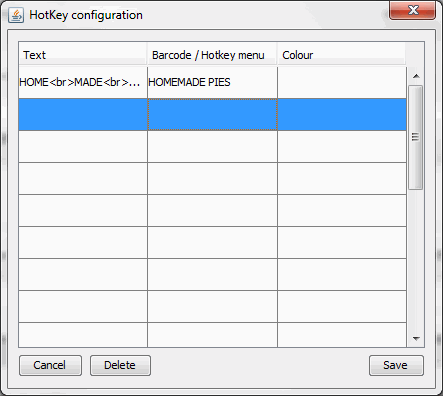
It is possible to have images on the custom quick key, to do this simply ensure that the image file (.JPG or .PNG) is saved with the same name as the Text field in 'C:\Jumpstart', this location can be changed using a system configuration change. The size of the image will need to be similar to the size of the button 100x80 pixels (HxW) or so.
When you have finished adding in all the buttons you need to click the 'Save' button.
To select the custom quick quick from the list they are all listed at the beginning of the list denoted by '*'.