End of Day/ Cashing Up (optional)
Although it is not essential to run a cashing up routine at the end of each trading day it is strongly recommended as such a process immediately highlights any issues with regards to poor cash handling, staff theft, etc.
You should only run the cashing up process after you have finished trading for the day.
You should not process any further transactions on the EPOS terminal until the following day. Should you need to, for whatever reason, then it is possible to go back and edit the cashing up figures but this should be discouraged.
After you have closed for the day you should firstly cash up each till; it is a good idea to run a ZREAD for each till and use this to reconcile the takings.
If you have more than one shift through the day or multiple tills you might find it helpful to print out a cashing up sheet to fill out at the end of each shift, and total this at the end of the day.
Details of running the cashing up process on the system follow.
Running the Cashing up process
Access the "Cashing up" process (Main Menu -> End of Day -> Cashing-up).
The system will display the cashing-up sheet:
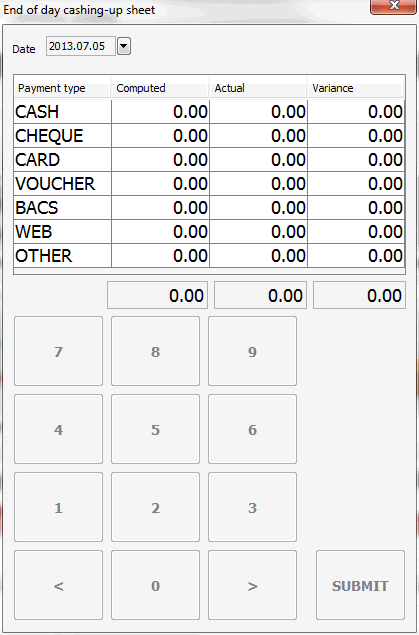
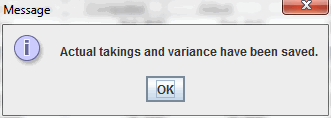
Click in the "Actual" field for each payment type and enter the corresponding amount, alternatively if you wish to enter the enter the value of each denomination tick the option and then enter the monetary value of each denomination this will automatically add the values into the CASH "Actual" field. When you have done this for all payment types click the SUBMIT button to add the details to the system. A confirmation message confirms that the actual takings and variances have been saved:
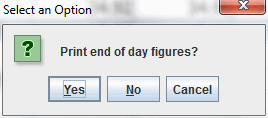
When the takings have been saved you have an option to print an end of day receipt:
Terminal Specific Cashing Up
If you like to enter the cashing up details based on individual terminals there is a configuration option that could be enabled which displays the "Enter figures" button on the End of Day cashing up window. Clicking on this will load the following window:
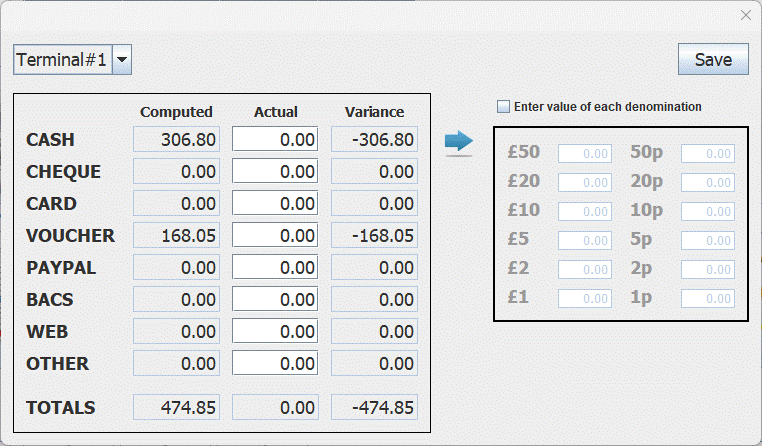
Select the terminal you are wanting to enter the details for from the drop down list, this will only show terminals that have actively had any sales run through it on the day. Enter the figures for each terminal as above for the specific terminal and click "Save" this will then run through the submit and print options detailed above automatically.
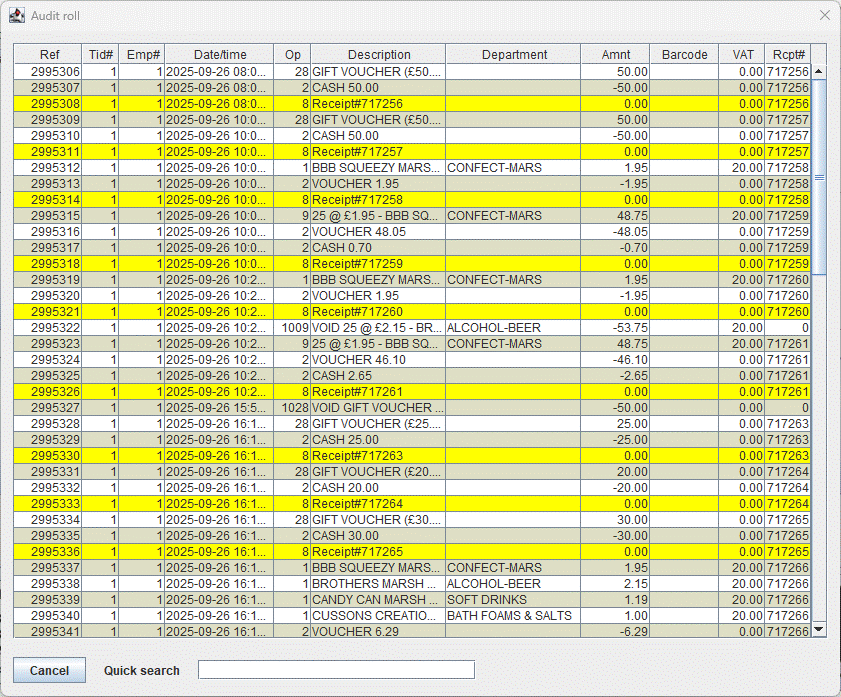
Audit Roll
This gives you a one stop shop to view the sales transactions in a single list, you can quickly search for specific sales using the quick search.