Processing Wastage
This ultimately uses the POS interface to create a wastage transfer note which can then be viewed through the stock movement and through transfer/wastage reports.
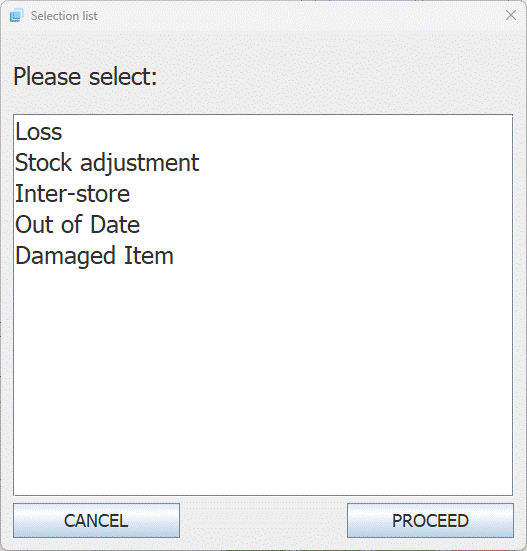
The first thing you need to select is the reason for the wastage, these options can be set through the "Stock transfer reason codes" option:
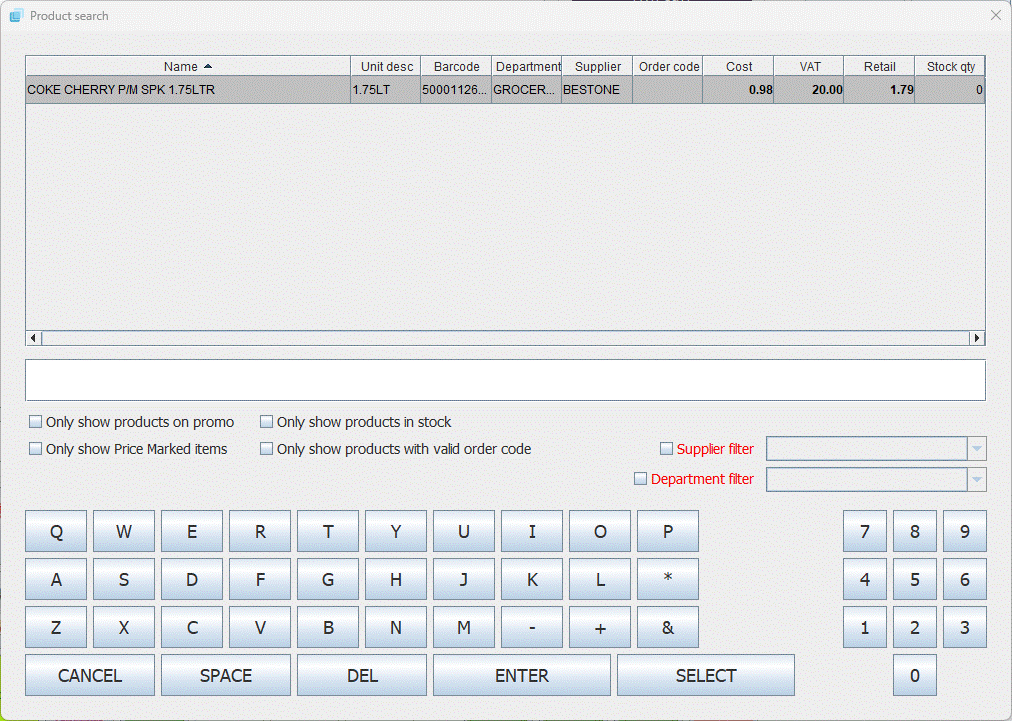
Next you need to find the product you are wasting this can be done by scanning the barcode, searching for the product by name:
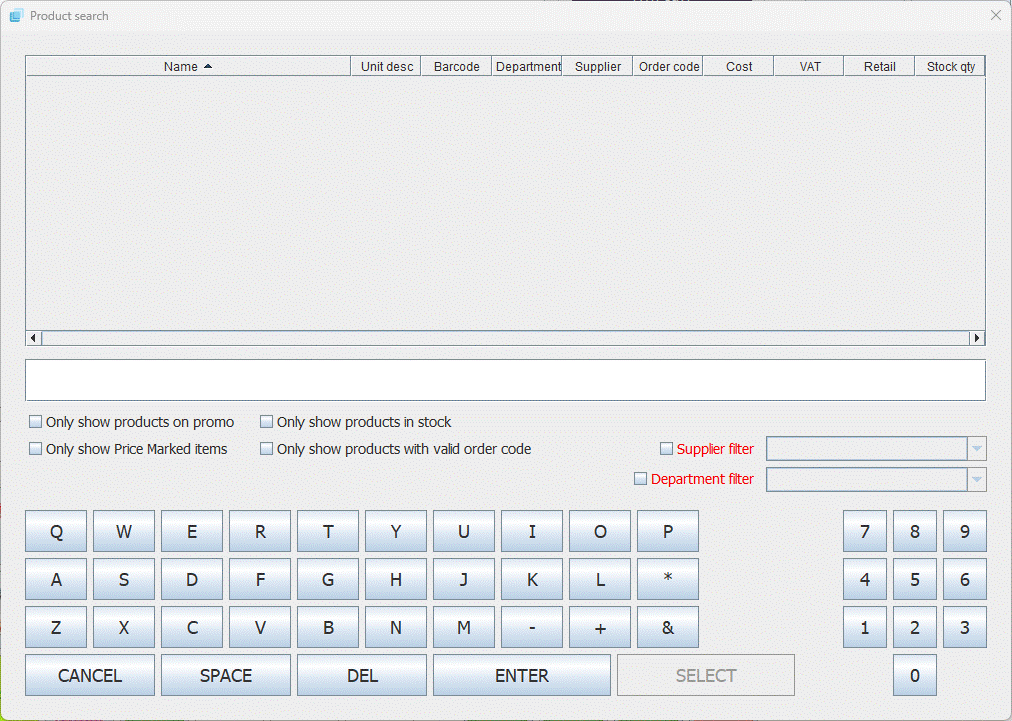
Once you have the product in the list select it and then tap the "Select" button:
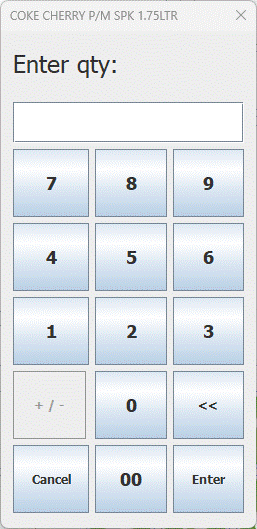
Next enter the quantity of the product being wasted:
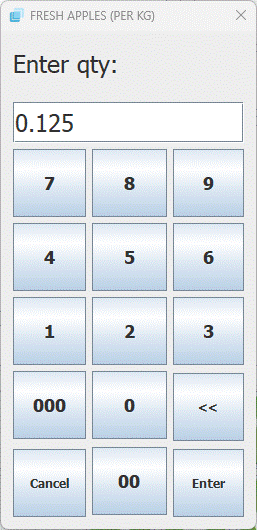
If the product is a weighed and you have scales you can place the product on the scales to get the accurate weight, or if your scales are separate you can manually enter the weight of the product:
When you have finished adding the quantity you will be taken back to the product search window to add another product. If you have finished putting products through simply tap the "Cancel" button to process the transfer:
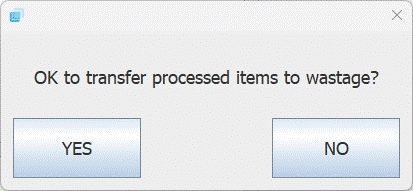
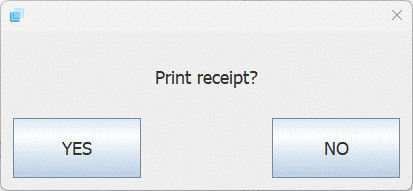
Tap "Yes" to confirm the transfer to wastage and then you will be asked if you want to print a receipt: